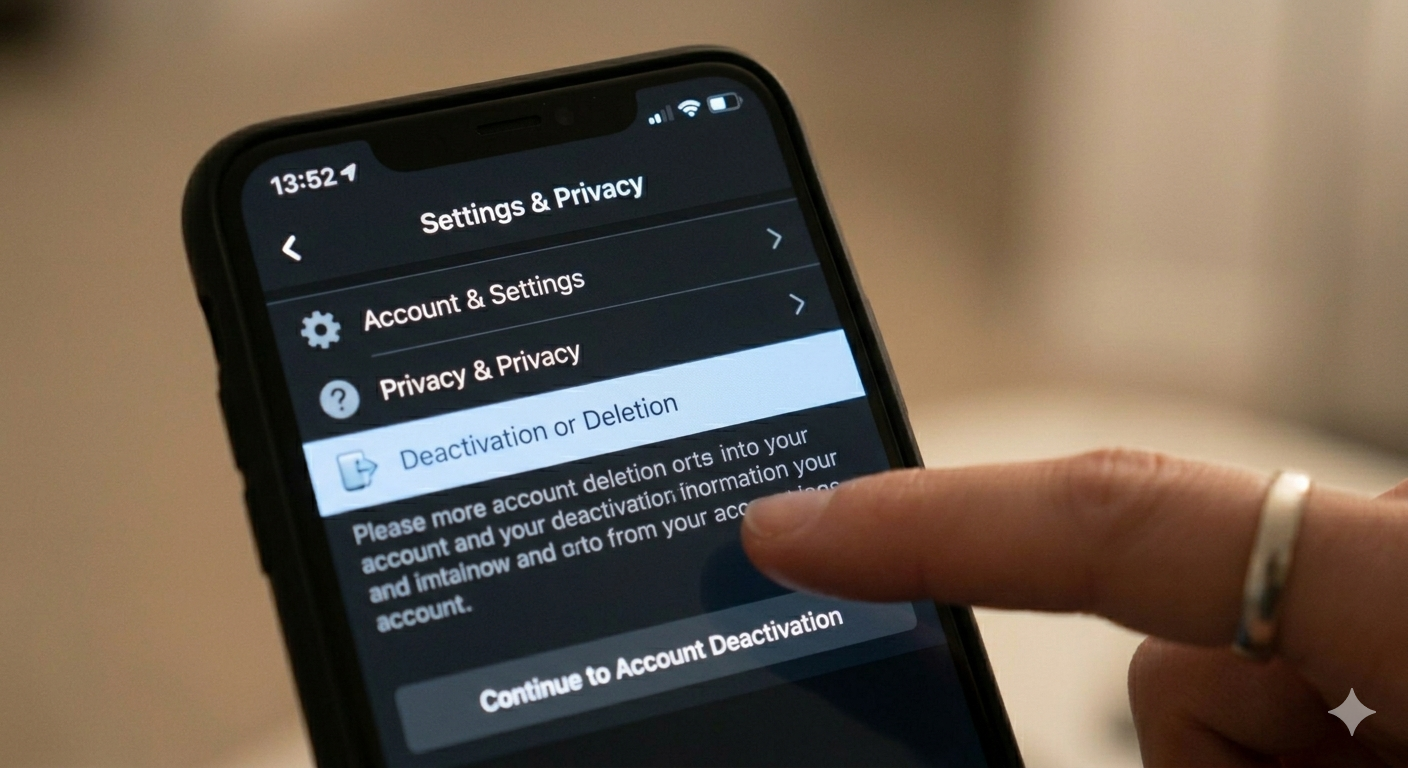
In today’s digital world, social media can sometimes feel overwhelming. Whether you want a break from constant notifications or need more privacy, learning how to deactivate Facebook is a useful option. Deactivation allows you to temporarily disable your account without permanently deleting your data. In this SEO-friendly guide, you’ll learn everything you need to know about deactivating Facebook easily and safely.
What Does Deactivating Facebook Mean?
Before you proceed, it’s important to understand what deactivation actually does. When you deactivate your Facebook account:
- Your profile becomes invisible to others
- People cannot search for you
- Your timeline and posts are hidden
- Facebook Messenger may still remain active (optional)
However, your data is not deleted. You can reactivate your account anytime by simply logging back in.
Reasons to Deactivate Facebook
There are several reasons why users choose to deactivate their accounts:
1. Reduce Screen Time
Social media can be addictive. Taking a break helps improve productivity and mental health.
2. Privacy Concerns
If you’re worried about data usage or privacy, deactivation gives you control without losing your data.
3. Temporary Break
Sometimes you just need time away from online distractions.
4. Avoid Notifications
Constant alerts can interrupt your daily routine. Deactivation stops them completely.
Step-by-Step Guide to Deactivate Facebook
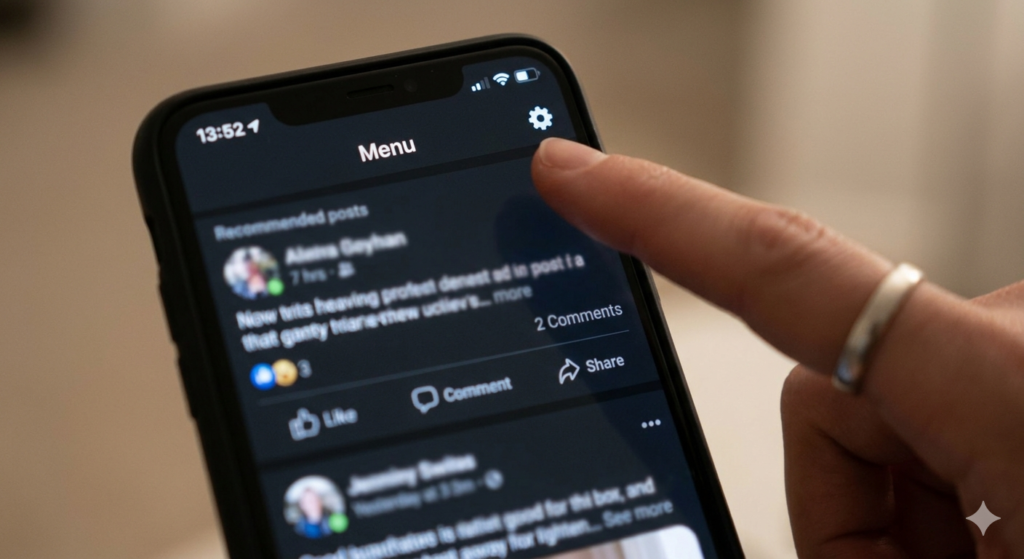
Follow these simple steps to deactivate your Facebook account:
Step 1: Log into Your Account
Open Facebook on your browser or mobile app and log in with your credentials.
Step 2: Go to Settings
Click on your profile picture in the top-right corner and select Settings & Privacy, then click Settings.
Step 3: Access Account Center
Navigate to Accounts Center, usually found in the settings menu.
Step 4: Select Personal Details
Click on Personal Details and then choose Account Ownership and Control.
Step 5: Choose Deactivation
Click on Deactivation or Deletion and select the account you want to deactivate.
Step 6: Confirm Deactivation
Choose Deactivate Account, then click Continue. Enter your password and follow the instructions to confirm.
How to Deactivate Facebook on Mobile
If you’re using a smartphone, the process is slightly different:
- Open the Facebook app
- Tap the menu (three lines)
- Go to Settings & Privacy → Settings
- Tap Accounts Center
- Select Personal Details
- Tap Account Ownership and Control
- Choose Deactivation or Deletion
- Select Deactivate Account and confirm
What Happens After Deactivation?
After deactivating your Facebook account:
- Your profile is hidden immediately
- Tags and comments may still be visible to others
- Messenger can still be used unless you deactivate it separately
- You won’t receive Facebook notifications
Your account remains stored securely until you decide to return.
How to Reactivate Facebook Account
Reactivating your account is simple:
- Log in using your email and password
- Your profile, posts, and friends will be restored instantly
There’s no time limit for reactivation, so you can come back whenever you want.
Deactivation vs Deletion: Know the Difference
Many users confuse deactivation with deletion. Here’s a quick comparison:
| Feature | Deactivation | Deletion |
|---|---|---|
| Temporary | Yes | No |
| Data Recovery | Yes | No |
| Profile Visible | No | No |
| Can Reactivate | Yes | No |
If you want a permanent solution, deletion is the better choice. Otherwise, deactivation is safer.
Tips Before Deactivating Facebook
Before you deactivate your account, consider these tips:
- Download your Facebook data (photos, videos, posts)
- Inform close friends if needed
- Manage connected apps or logins
- Decide whether to keep Messenger active
Deactivating Facebook is a simple and effective way to take control of your digital life without losing your data. Whether you need a break, better focus, or more privacy, this feature gives you flexibility. By following the steps outlined above, you can easily deactivate your account and return whenever you feel ready.
Adolf Hitler Biography and His Brutality
What Is Middle East and Why Is It Called Middle East?
Read Also: Dating Or Matrimony Website Design