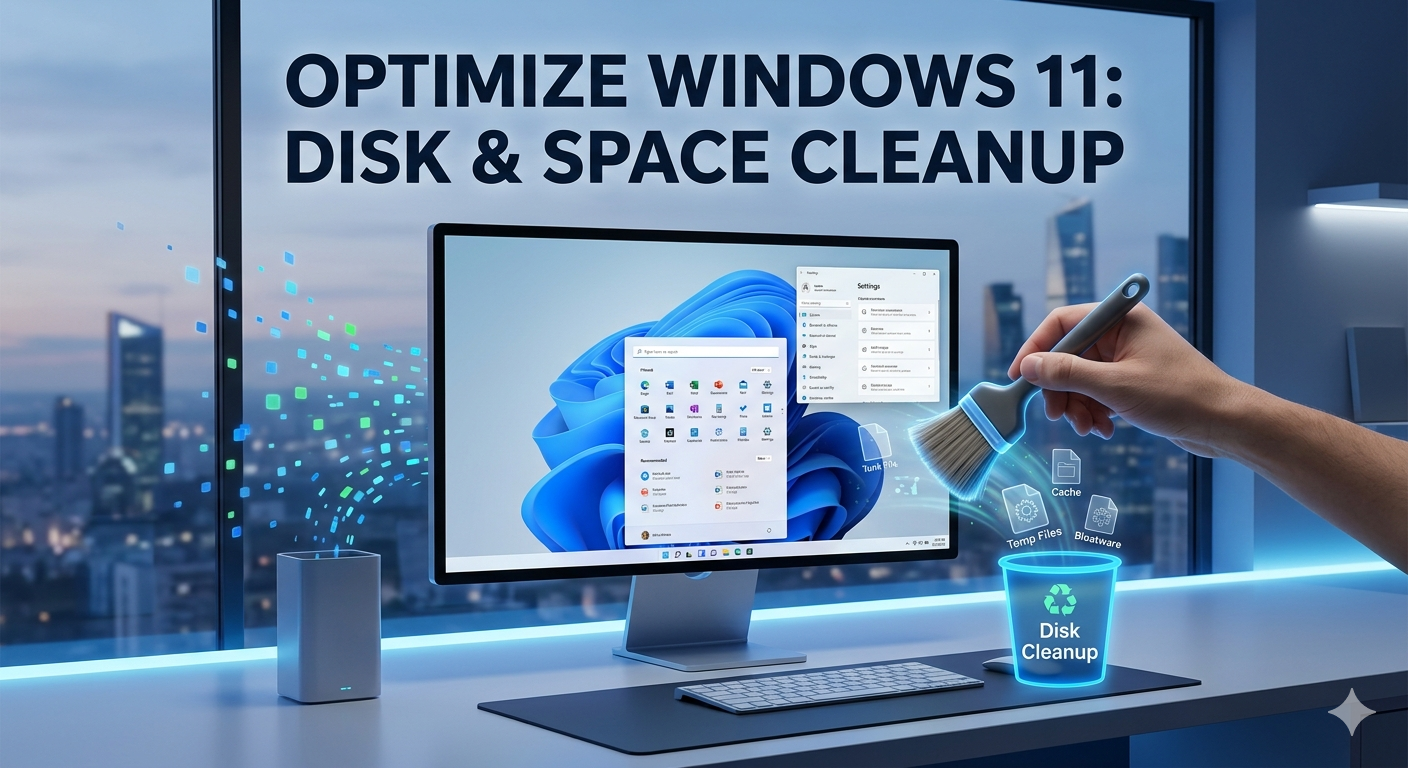
Windows 11 offers a modern interface, enhanced security features, and improved productivity tools. However, over time, your computer may start to slow down due to unnecessary startup programs, background applications, and accumulated system files. Learning How to Optimize Windows 11 can significantly improve performance, increase boot speed, and provide a smoother user experience. In this guide, we will discuss the most effective ways to optimize Windows 11 for maximum efficiency.
Disable Unnecessary Startup Programs
One of the most common reasons for slow system performance is having too many applications launch during startup. Many software programs automatically add themselves to the startup list, increasing boot time.
To manage startup apps:
- Open Task Manager by pressing Ctrl + Shift + Esc.
- Click the Startup Apps tab.
- Disable programs that are not essential.
Reducing startup applications can help Windows 11 boot faster and free up valuable system resources.
Keep Windows 11 Updated
Frequently, Microsoft releases updates that improve performance, address errors, and increase security. Running the latest version of Windows 11 ensures your system remains stable and optimized.
To check for updates:
- Open Settings.
- Select Windows Update.
- Click Check for Updates.
Installing updates promptly can help maintain optimal system performance and security.
Clean Up Temporary Files
Temporary files accumulate over time and consume valuable storage space. Removing these unnecessary files can improve system responsiveness.
Use Storage Sense:
- Open Settings.
- Navigate to System > Storage.
- Enable Storage Sense.
Storage Sense automatically removes temporary files, recycle bin contents, and other unnecessary data, helping keep your PC clean and efficient.
Optimize Visual Effects
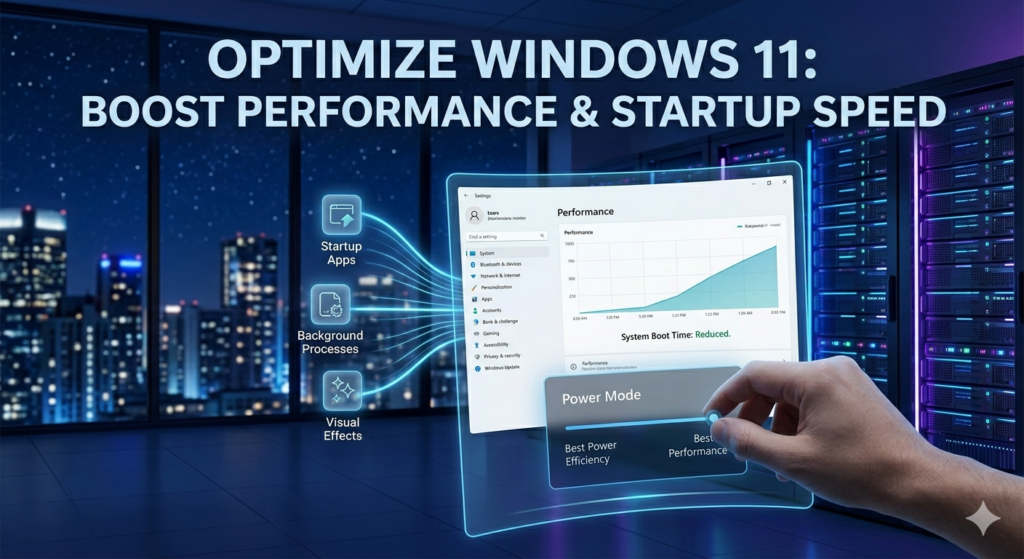
Windows 11 includes various animations and visual effects that can consume system resources, especially on older hardware.
To adjust visual effects:
- Search for Advanced System Settings.
- Click Performance Settings.
- Select Adjust for Best Performance or customize specific effects.
Reducing visual effects can make Windows 11 feel faster and more responsive.
Uninstall Unused Applications
Unused software occupies storage space and may run background processes that affect performance. Regularly reviewing installed applications can help keep your system optimized.
To remove unnecessary programs:
- Go to Installed Apps under Settings > Apps.
- Identify programs you no longer use.
- Click Uninstall.
Removing unwanted applications can free up disk space and improve overall system efficiency.
Manage Background Applications
Even while not in use, several apps continue to operate in the background. These apps consume memory, CPU resources, and battery power.
To manage background activity:
- Open Settings > Apps.
- Select the application.
- Adjust its background permissions.
Limiting unnecessary background processes can significantly improve Windows 11 performance.
Optimize Your Storage Drive
A nearly full storage drive can negatively impact system speed. Maintaining sufficient free space is essential for smooth operation.
Tips for storage optimization:
- Delete duplicate files.
- Move large files to external storage.
- Use cloud storage services.
- Empty the Recycle Bin regularly.
For traditional hard drives, running disk optimization tools can also improve file access speed.
Scan for Malware and Viruses
Malware infections can severely impact system performance. Regular security scans help ensure your computer remains protected and efficient.
Use Windows Security:
- Open Windows Security.
- Select Virus & Threat Protection.
- Run a full system scan.
Keeping your device malware-free contributes to better speed and reliability.
Optimizing Windows 11 does not require advanced technical knowledge. By disabling unnecessary startup programs, cleaning temporary files, managing background applications, updating the operating system, and maintaining adequate storage space, you can significantly improve your computer’s performance. Regular maintenance ensures that Windows 11 continues to run smoothly, providing a faster, more productive, and more enjoyable computing experience. Following these optimization techniques will help maximize the lifespan and efficiency of your Windows 11 PC.
Effects of AI in Upcoming Technology
Manhole – Essential Access Points in Urban Infrastructure
RCPC Manhole Covers and Frames
Read Also : Social Network Website Design